

Tag Manager Setup: A Step-by-Step Guide for Business Sites
A clean Google Tag Manager setup comes down to six moves. Create one account and a web container, install the two container snippets, add your Google tag and event tags, remove any hard-coded duplicates, test in Preview mode, then publish a named version. This guide walks through each step in order. It also covers the planning and housekeeping that decide whether your data is still trustworthy a year from now.
TL;DR
- Create one Tag Manager account per organization and one web container per domain, unless tags and logic are truly shared across domains.
- Install the container code once: the first snippet in the
<head>, the second right after the opening<body>tag. Or use your CMS integration. - Remove hard-coded tags once GTM is live, or they will fire twice and inflate your numbers.
- Never publish untested changes: use Preview mode, then save a versioned, clearly named release.
- Plan what you measure before you build anything. A short tracking plan saves more time than any trick.
Indice
- What Tag Manager does, and what it does not
- Before you touch the interface: plan your tags
- Step 1: Create your account and container
- Step 2: Install the container on your site
- Step 3: Understand tags, triggers and variables
- Step 4: Add your Google tag and event tags
- Step 5: Test in Preview mode
- Step 6: Publish with a clean version
- Best practices that keep a container healthy
- Our perspective: tracking is a business system, not a technical chore
- Need a hand with your setup?
- FAQ
- Fonti
What Tag Manager does, and what it does not
Google Tag Manager (GTM) is a web interface where you configure and deploy tags from Google products and third parties, according to Google’s own setup documentation. You add one container to your site, and from then on marketing and analytics tags are managed in the browser instead of in your page code.
Three terms get mixed up constantly:
- Google Tag Manager is the management layer. It holds and fires tags.
- The Google tag (gtag.js) is a JavaScript framework that adds Google tags straight to your pages. Google explains that GTM manages deployment without manual code changes, while gtag.js is deployed directly in code.
- Google Analytics is the reporting product. The Google tag is what sends data to it.
So GTM does not replace analytics. It is how you send data to analytics, ad platforms and other tools in a controlled way. If you only ever need one Google tag and never change it, direct installation is fine. The moment several teams, vendors or campaigns need to touch tracking, a tag manager pays for itself.
Before you touch the interface: plan your tags
Most broken setups were never planned. Google’s quick start guide suggests mapping your site: decide which events to measure, what data to collect and which vendors will receive it, and track those details in a spreadsheet. Mapping also makes sure the right tags sit in the right places, so you collect higher-quality data.
A simple tracking plan has five columns:
| Business question | Event to measure | Where it happens | Data needed | Destination |
|---|---|---|---|---|
| Which pages drive enquiries? | Form submit | Contact and landing pages | Form name, page URL | GA4, ad platforms |
| Are calls worth paying for? | Click on phone link | Header, footer, contact | Page URL | GA4 |
| Which products attract interest? | Add to cart | Product pages | Product name, price | GA4, ad platforms |
| Do downloads convert? | File download | Risorse | File name | GA4 |
Keep it to the five or ten actions that tie to revenue. A site with a clear structure is also easier to map, because you can see at a glance which templates need which tags. If your pages are buried, our guide to site architecture for SEO is a useful companion to this step.
Decide how many containers you need
Google’s guidance is one container per web domain, or a single container when the user experience and tags span multiple domains (Tag Manager Help). The same page cautions that a shared container only makes sense when tags and firing logic are consistent across domains, because publishing a change affects every domain it serves.
For most business owners that means: one site, one container. Two brand sites with different tracking needs, two containers.
Decide who owns the account
Google’s planning guidance says to set up one Tag Manager account per organization, created by the organization that will manage the tags. In practice, this means the account lives under a company email address you control. If an agency or freelancer builds it, make sure you are an administrator from day one. Accounts created under a contractor’s personal login are the most common reason a business loses access to its own tracking.
Step 1: Create your account and container
- Sign in at tagmanager.google.com with your company Google account.
- In the Accounts tab, select Create Account. The account is the topmost level of organization for your company.
- Enter the account name (your company) and country.
- Name the container after the domain, for example your website address, and choose Web as the target platform.
- Accept the terms.
You can add more containers later from the menu next to the account name by selecting Create Container. These steps follow Google’s account and container guide.
Step 2: Install the container on your site
Your container ID looks like GTM-XXXXXX. Find it in the Workspace tab, click it, and Google shows the code snippets to copy. Per Google’s install instructions, the first snippet goes in the <head> of the page and the second immediately after the opening <body> tag, on every page.
If your site runs on a builder or CMS such as WordPress, Shopify or Wix, the same page notes you can use an integration that does not need code updates on each page. Use the integration when it exists: it applies the container sitewide and survives theme changes better than pasted code.
Check that it loaded
Open your site, then use Preview mode (covered below) and confirm Tag Assistant connects. If it does not, the usual causes are a snippet pasted in only one template, a caching plugin serving an old page, or a consent banner blocking the container entirely.

Step 3: Understand tags, triggers and variables
Every GTM build uses three pieces, defined in Google’s components reference:
- Tags execute code, such as sending a measurement to Google Analytics.
- Triggers listen for events like page loads or clicks and tell a tag when to fire.
- Variables are named placeholders for values, such as a product name or price, that tags use to pass data along.
The same reference describes the data layer, which holds values temporarily so tags, triggers and variables can reference them. For simple tracking such as clicks and page views, built-in variables are enough. For e-commerce values, form details or logged-in status, ask your developer to push those values into the data layer rather than scraping them from page text. Scraped values break the day someone edits the page design.
Step 4: Add your Google tag and event tags
Google’s tagging guidance for Google Analytics describes GTM as a web-based tag management system for creating Google tags and installing them without manually adding JavaScript. A typical sequence for Google Analytics 4:
- In GA4, copy your measurement ID (it starts with G-) from the web data stream.
- In GTM, go to Tags, then New, and choose the Google tag type.
- Paste the measurement ID and set it to fire on all pages.
- Name it clearly, for example
Google tag - GA4 - All pages. - Add event tags for the actions in your tracking plan, each with its own trigger.
Once the base tag works, add the platforms that pay for your traffic: Google Ads conversions, Meta, LinkedIn or email tools. Every added tag is another place where errors leak into your reporting. Tags configured against the wrong conversion or fired on the wrong page are among the typical ad tracking mistakes that cost leads. If affiliate or partner traffic matters to you, there are also specific GA4 affiliate tracking rules worth reading before you define those events.
Remove hard-coded duplicates
This is the step people skip. Google’s quick start guide says that once GTM is installed, you should remove hard-coded tags to prevent them from firing twice. Search your theme files, plugins and CMS settings for old analytics snippets, pixel code and plugin fields with tracking IDs. Double firing shows up as suspiciously low bounce rates, inflated page views, and conversions that are higher than your sales records.
Step 5: Test in Preview mode
Google’s guidance is to test with Preview and Debug mode on your live site, then create a version of the container before publishing (quick start guide).
A practical test routine:
- Click Preview, enter your site URL and start the session.
- Load a page and confirm the Google tag fires once, not twice.
- Perform each action in your plan: submit the form, click the phone link, add a product to the cart.
- For each action, open the event in the debug panel and check that the right tag fired and that its variables hold real values, not blanks or undefined.
- Repeat on mobile and in a private window.
- Check the destination too. Look for the event in GA4’s real-time report.
If a tag did not fire, the debug panel shows which trigger conditions failed. That is nearly always faster than guessing.
Step 6: Publish with a clean version
Once everything is verified, click Submit, give the version a name and description, and publish. The guide’s flow is simple: test, create a version, publish. Treat the description as the change log. “Added form submit event, removed legacy pixel” will save you an hour in six months.
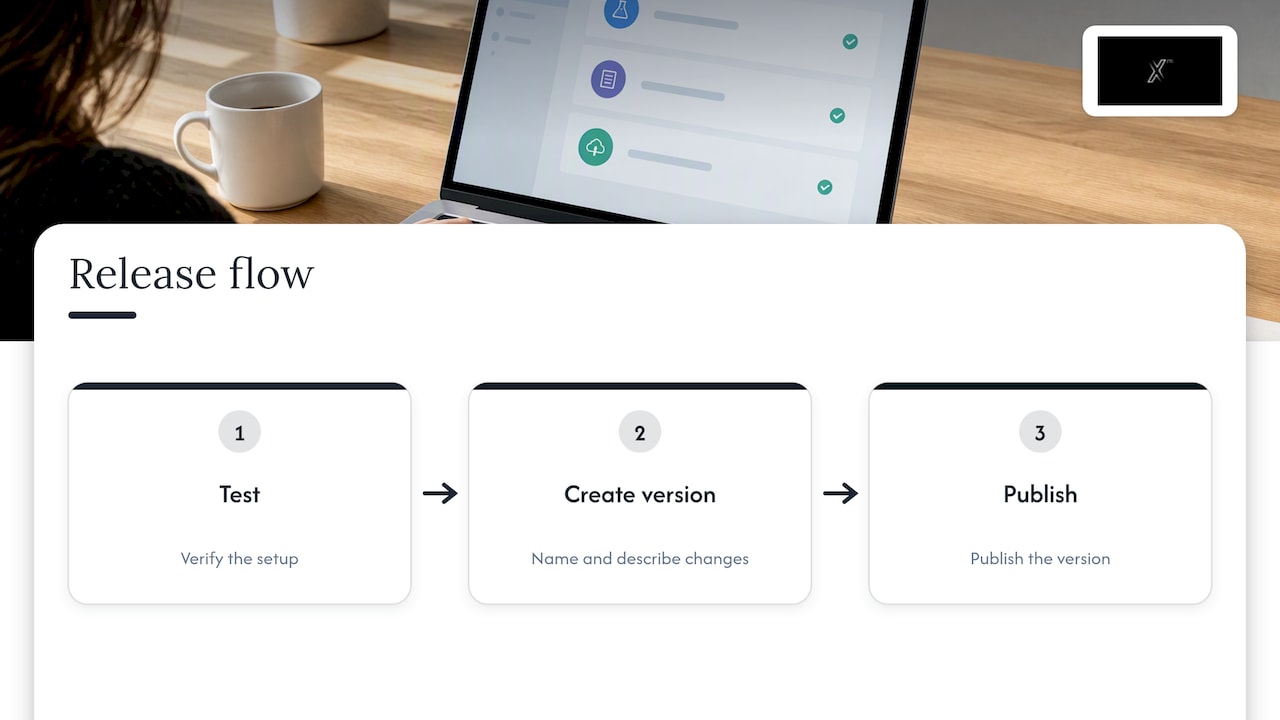
If something goes wrong after publishing, you can restore a previous version from the Versions tab. That is exactly why every release should be named.
Best practices that keep a container healthy
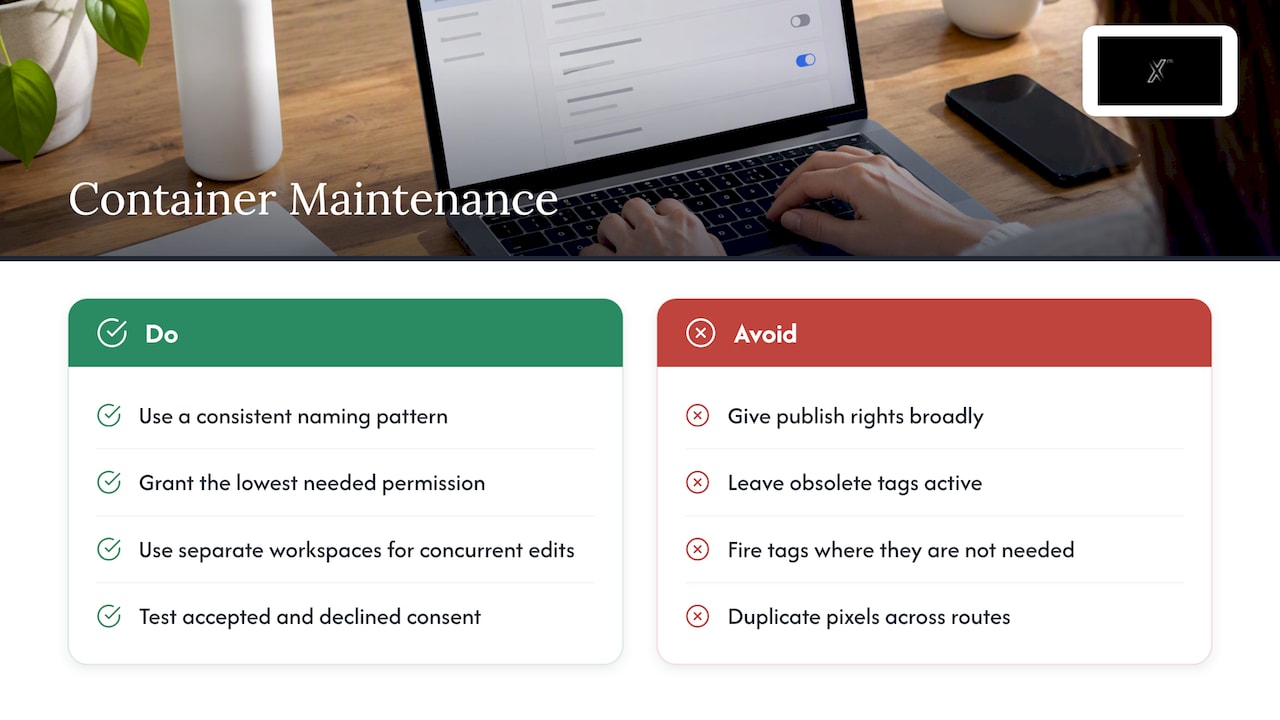
Setup is a day of work. Maintenance is the rest of the container’s life. These habits keep it useful.
Use a naming convention. Pick a pattern and keep it: platform, purpose, scope. GA4 - Event - generate_lead, Trigger - Click - Phone. Anyone opening the container should understand it in minutes.
Control access. GTM supports collaboration through workspaces and version control, as Google’s tagging documentation notes. Give people the lowest permission they need. Publish rights should belong to a small, named group.
Work in separate workspaces when two people change tracking at once, so half-finished work does not go live by accident.
Handle consent first. If you serve visitors in regions with consent rules, your banner and tags must work together. Configure the consent behavior of each tag with your legal adviser’s input and test it with the banner both accepted and declined.
Audit quarterly. Remove tags for tools you no longer use, pause old campaign pixels, and re-run your event tests after every site redesign or checkout change. Redesigns are when tracking silently breaks. If you want an outside check, a structured marketing audit will usually surface these problems alongside budget and channel issues.
Keep the container light. Every tag adds weight to page loads. Fire tags only where needed and avoid duplicating the same pixel through several routes.
When to consider server-side tagging
Google describes server-side tagging as an advanced feature that moves tag code off the client side and into the cloud, serving assets from your own domain, which can improve performance and security. It is not where a first setup should start. Get the web container right first. If you later need tighter control of data, faster pages, or more resilient measurement, our guide to server-side tagging with GA4 covers the steps, consent and the choice between a cloud project and a manual setup.
Our perspective: tracking is a business system, not a technical chore
We see the same pattern across the businesses we work with. The tags are rarely the problem. The problem is that nobody decided what the numbers were for. A container with forty tags and no tracking plan produces dashboards no one trusts, and then decisions fall back to opinion.
Our approach is to start from the commercial question: which channel earns its budget, which page loses visitors, which campaign brings leads that close. Then we build the smallest set of events that answers it, test every one, and document it so the client owns the result. Measurement should feed your strategy, your media buying and your attribution thinking, not sit in a separate technical corner. That is why we treat Dati & Analisi as part of the same system as content, campaigns and web development, and why we recommend reading about marketing attribution models before you decide what counts as a conversion.
— Xpert
Need a hand with your setup?
If you would rather have your tracking planned, installed and tested by a team that also runs the campaigns it measures, we can act as your external marketing department. Our data and analytics service covers tracking plans, tag implementation and reporting, and you can see everything we offer on our services page. We can also train your team to manage the container yourselves. Pricing for these services is not published, so get in touch with your goals and we will scope it with you.
FAQ
How do I find my Tag Manager ID?
Open your container in the Workspace tab. The container ID, formatted like GTM-XXXXXX, is shown near the top of the screen. Click it to see the install snippets that contain the same ID.
Do I need Tag Manager if I already have Google Analytics?
Not strictly. The Google tag can be installed directly and will send data to Google Analytics. Tag Manager becomes worthwhile when you want to add or change several tags, such as ad conversions and event tracking, without editing site code each time, or when more than one person manages tracking.
Can I use one container for several websites?
Google supports a single container when the user experience and tags span multiple domains, but only when tags and firing logic are consistent across them. Publishing affects every domain the container serves. If your sites track different things, use one container per domain.
Why are my conversions counted twice?
The most common cause is a tag that exists both in GTM and hard-coded in your theme or a plugin. Remove the hard-coded version once GTM is live. Then confirm in Preview mode that each tag fires once per action.
Fonti
- Create an account and container, Tag Manager Help
- Tag Manager and the Google tag (gtag.js)
- Install a web container, Tag Manager Help
- Components of Google Tag Manager, Tag Manager Help
- Considerations before you install, Tag Manager Help
- Quick Start Implementation Guide, Google
- Tagging for Google Analytics, Google for Developers
- About Google Tag Manager, Tag Platform
- 5 Ad Tracking Mistakes That Are Costing You Leads
- GA4 Affiliate Tracking for Marketers


